

Category Attachment - Tabs - Class on row - Category-data
Zebra ZD421d Printer Technical Information & Downloads
General features
- Print technology: Direct thermal printing (no ink ribbon required)
Printer specifications
- Resolution: 203 dpi (8 dots/mm) or 300dpi (12 dots/mm)
- Print width: Up to 104 mm for 203dpi and 108mm for 300dpi version
- Print length: Up to 991 mm
- Media sensors: Reflective and transmissive sensors
- Speed: Prints up to 152 mm (6 inches) per second
Media characteristics
- Maximum roll diameter: 127mm
- Media width: 15mm - 108mm
- Core diameter: 12.5mm, 25mm and 38mm
- Types: Supports a variety of media, including roll-fed or fan-fed, die-cut or continuous labels, tag stock, and wristbands
Downloads & Resources
Zebra GK420d User Manual (PDF)
Printer Driver & Software Downloads
Technical Specifications & Data Sheet
Firmware Updates
Calibration and Setup Guides
Html block - class "category-attachments"
To calibrate the Zebra ZD421d simply power on the printer and press and hold the PAUSE and CANCEL buttons together for around two seconds. The printer will automatically feed labels out and measure and align your labels.
Compatible Supplies
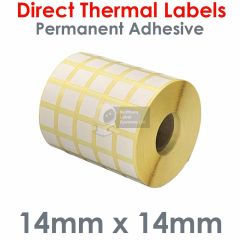
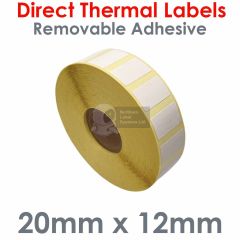
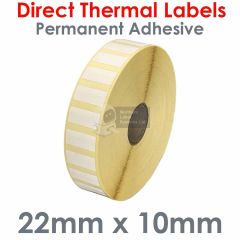
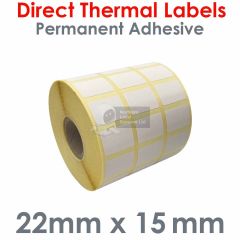
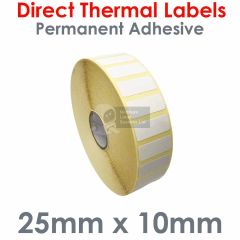
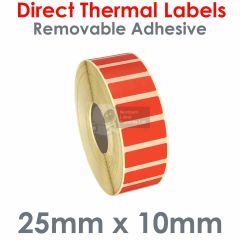
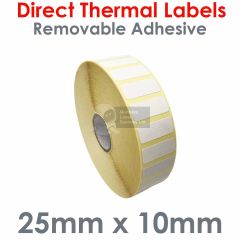
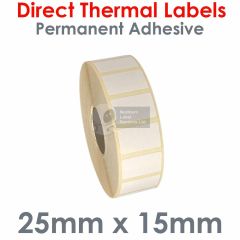
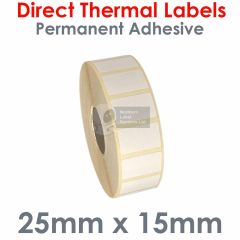
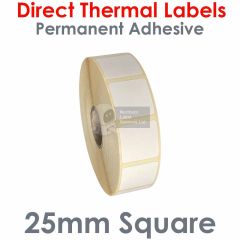
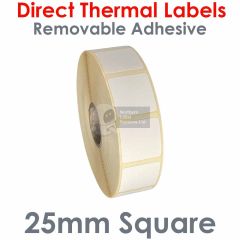
This page contains a large variety of labels that are compatible with the Zebra ZD421d. As this is a direct thermal label printer no ink ribbon is required.
Frequently Asked Questions — Zebra ZD421d Label Printer
1. How do I install the Zebra ZD421d printer driver?
You can download the latest Zebra ZD421d printer driver and setup utilities from Zebra's website. Once downloaded, run the installer and follow the on-screen prompts to complete the installation on your Windows system.
2. How do I calibrate my Zebra ZD421d label printer?
To calibrate, power on the printer and press and hold the PAUSE and CANCEL buttons together for around two seconds. The printer will automatically feed labels out and measure and align your labels.
3. What type of labels does the ZD421d use?
The Zebra ZD421d uses direct thermal labels, no ribbon is required. It supports label rolls up to 108mm wide suitable for shipping, barcode, and product labelling.
4. Why is my Zebra ZD421d skipping or misaligning labels?
This usually indicates that the printer needs to be recalibrated or that the label sensor is dirty. Run the calibration procedure and clean the sensors with a lint-free cloth. Check that labels are properly loaded and within specification.
5. How do I reset the Zebra ZD421d to factory settings?
The ZD421d has a small hole in the centre of the underside of the printer. With the power switched on simply insert a paperclip (or similar sized item) into the hole for 5 seconds to reset the printer. If you insert the clip for 10 seconds the network connection will also reset.
6. Can I connect the Zebra ZD421d via USB or network?
Yes. The ZD421d supports USB, Serial, and Ethernet connections depending on your model. Refer to the user manual for connection setup and driver installation instructions.
7. Where can I find the Zebra ZD421d Specification Sheet?
You can download the official Zebra ZD421d Specification Sheet (PDF) in the Downloads section above. These include full specifications for this model.