

Category Attachment - Tabs - Class on row - Category-data
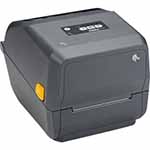
Zebra ZD421t Printer Technical Information & Downloads
General features
- Print technology: Thermal transfer (ribbon required) and direct thermal printing (no ink ribbon required)
Printer specifications
- Resolution: 203 dpi (8 dots/mm) or 300dpi (12 dots/mm)
- Print width: Up to 104 mm for 203dpi and 108mm for 300dpi version
- Print length: Up to 991 mm
- Media sensors: Reflective and transmissive sensors
- Speed: Prints up to 152 mm (6 inches) per second
Media characteristics
- Maximum roll diameter: 127mm
- Media width: 15mm - 112mm
- Core diameter: 12.5mm, 25mm and 38mm
- Ribbon width: 34mm - 110mm
- Ribbon length: 74 metres on 12.5mm core or 300 metres on 25mm core
- Types: Supports a variety of media, including roll-fed or fan-fed, die-cut or continuous labels, tag stock, and wristbands
Zebra GK420d User Manual (PDF)
Printer Driver & Software Downloads
Technical Specifications & Data Sheet
Firmware Updates
Calibration and Setup Guides
Html block - class "category-attachments"
To calibrate the Zebra ZD421t simply power on the printer and press and hold the PAUSE and CANCEL buttons together for around two seconds. The printer will automatically feed labels out and measure and align your labels.
Compatible Supplies
This page contains a large variety of labels that are compatible with the Zebra ZD421t.
All compatible ink ribbons for the Zebra ZD421t can be found here
Frequently Asked Questions — Zebra ZD421t Label Printer
1. How do I install the printer driver?
You can download the latest Zebra ZD421t printer driver and setup utilities from Zebra's website. Once downloaded, run the installer and follow the on-screen prompts to complete the installation on your Windows system.
2. How do I calibrate my Zebra ZD421t label printer?
To calibrate, power on the printer and press and hold the PAUSE and CANCEL buttons together for around two seconds. The printer will automatically feed labels out and measure and align your labels.
3. What type of labels does the ZD421t use?
This printer can print thermal transfer paper labels or synthetic (polypropylene, vinyl, polyester etc) labels using an ink ribbon and also direct thermal labels where no ribbon is required. It supports label rolls up to 118mm wide suitable for shipping, barcode, and product labelling.
4. What type of ink ribbon does the ZD421t use?
This printer uses ink ribbons between 34mm and 110mm in width. These can be 74 metres long on 12.5mm cores or 300 metre slong on 25mm cores. Compatible ink ribbons for the Zebra ZD421t can be found here.
5. Why is my Zebra ZD421t skipping or misaligning labels?
This usually indicates that the printer needs to be recalibrated or that the label sensor is dirty. Run the calibration procedure and clean the sensors with a lint-free cloth. Check that labels are properly loaded and within specification.
6. How do I reset the Zebra ZD421t to factory settings?
Switch the printer off then back on again while holding the PAUSE and FEED buttons until only the STATUS indicator light is on. The printer will now feed out a few blank labels to indicate that the reset has been successful.
7. Can I connect the Zebra ZD421t via USB or network?
Yes. The printer supports USB, Serial, and Ethernet connections depending on your model. Refer to the user manual for connection setup and driver installation instructions.
8. Where can I find the Zebra ZD421t Specification Sheet?
You can download the official Zebra Specification Sheet (PDF) in the Downloads section above. These include full specifications for this model.